Every recipe you publish, you build twice. Once in your doc, then again inside your recipe plugin.
With Tasty Recipes, you paste it in and the structure comes with it. 🙌🏻

Write your recipe your way. Tasty Recipes sorts out where it goes.
Recipes are personal, and so is the way you write them. You don’t have to change any of that.
Your words stay exactly as you wrote them. What changes is where they land. Your ingredient list breaks onto separate lines instead of arriving as one run-on block.
We built it that way after asking food bloggers how they build a recipe. Nearly all of them write it somewhere else first, then move it over. So that’s what the Recipe Builder is built around.
Your headings become your ingredient sections
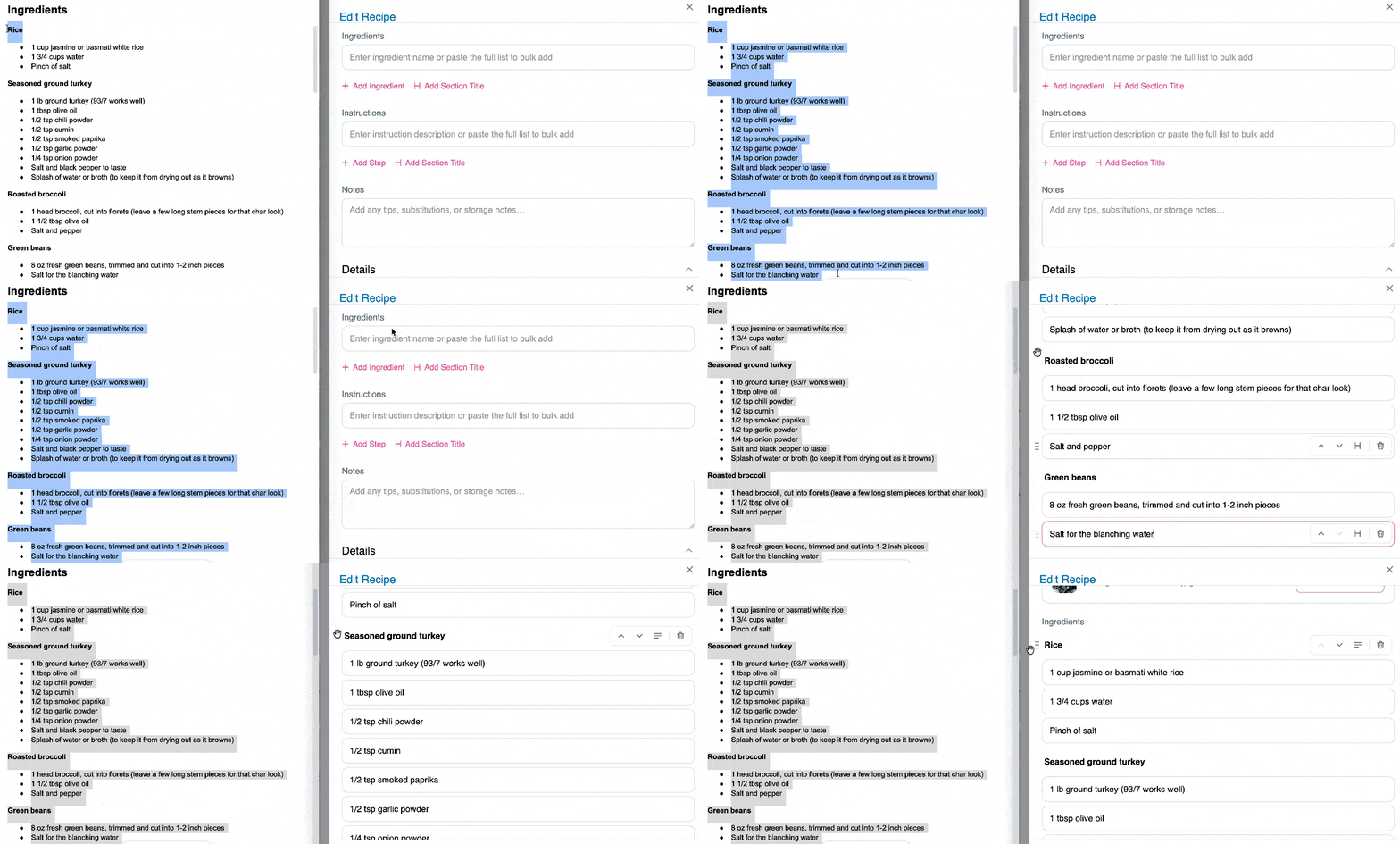
A rice bowl has parts. 🍚 There’s the rice, the seasoned ground turkey, the roasted broccoli, and the green beans. In your doc, each part already has a heading sitting over it.
Paste that in, and Tasty Recipes keeps your headings.
“Rice” becomes a section title, with rice, water, and salt sitting underneath it. “Seasoned ground turkey” becomes the next one, holding everything that belongs under it. However many sections your recipe has, they all come through.
You built that structure once, in your doc. You don’t build it twice.
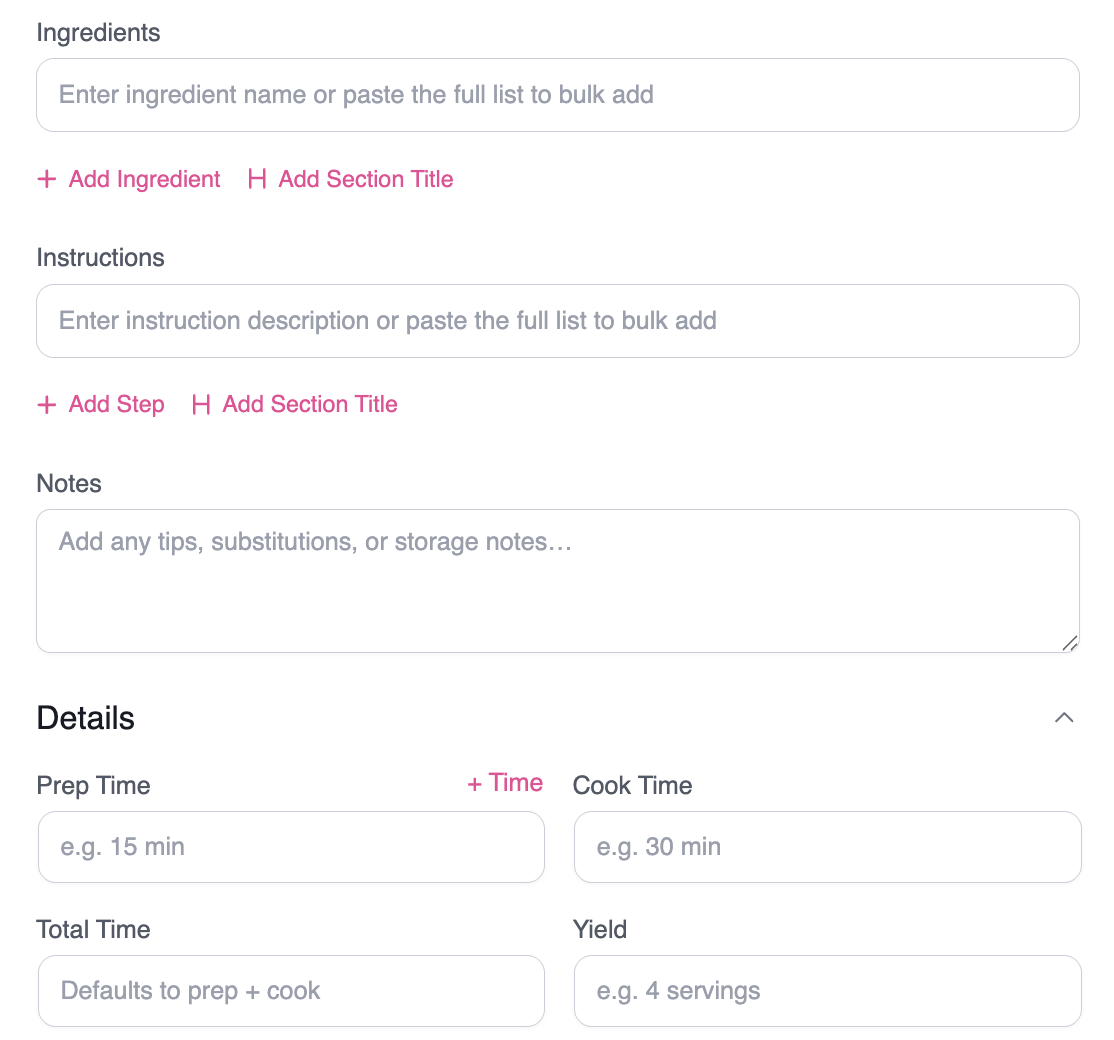
Building sections by hand works too. + Add Section Title sits right under your ingredient list, next to + Add Ingredient.
Your recipe instructions number themselves too
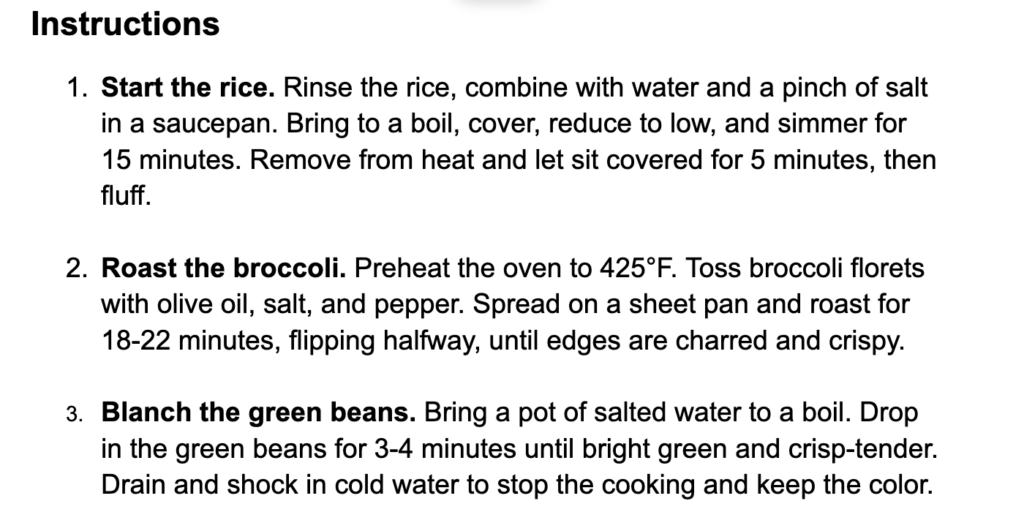
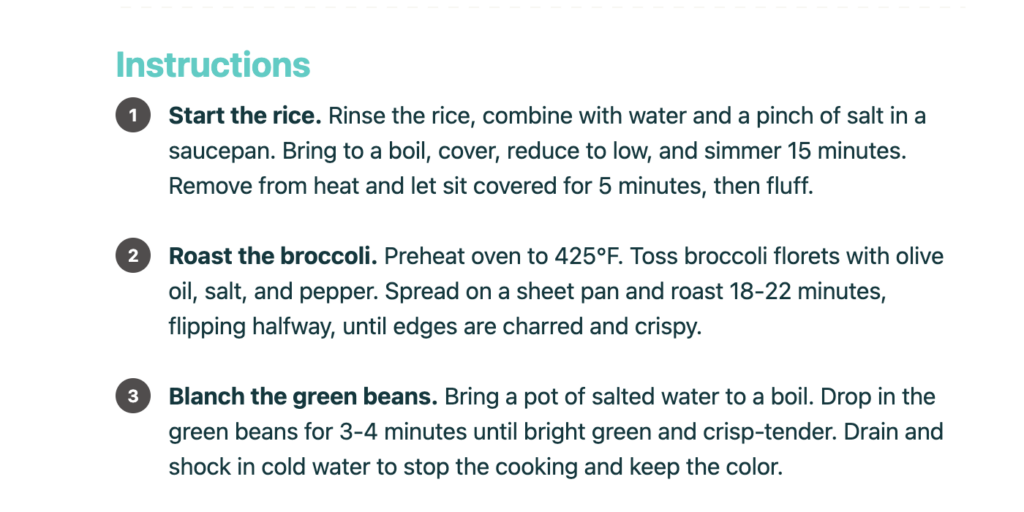
Paste your instructions. Each line becomes its own step, numbered automatically.
Already numbered them in your doc? Paste anyway. Tasty Recipes strips your old numbers, so your recipe card never reads “1. 1. Preheat the oven.”
Hit enter or return at the end of a step. The next one opens up, ready to type into.
Steps group up the same way ingredients do. Turn any step into its own section title, and your multi-part recipe stays organized on both sides.
You can add an image to any step too, so a process shot sits right where it belongs. 📸
Move anything in your recipe, retype nothing
You get to the end and spot the mayo sitting under the rice instead of the sauce. Grab the six dots on the left and drag it where it belongs. Or nudge it one slot at a time with the arrows on the right.
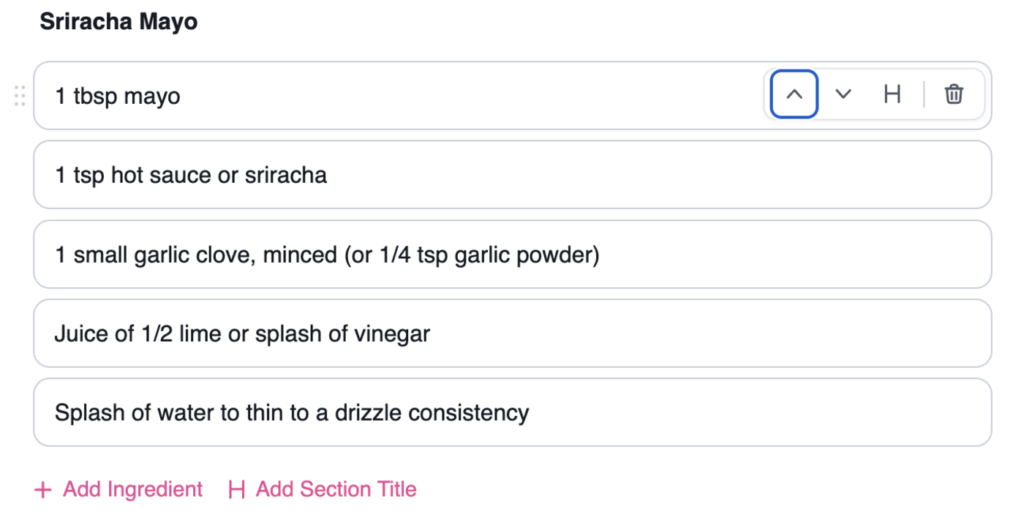
Move step six above step three, and the numbers sort themselves out.
You can also highlight any text to add bold, italics, underline, or a link. 🔗
Prep and cook time aren’t the whole story
Prep time and cook time don’t cover every recipe. Bread needs to rest. Cheesecake needs to set. ⏲️
Add one more time field and label it whatever your recipe needs. It rolls into your total, so 20 minutes of prep plus an hour of baking plus 4 hours of chill time shows up as 5 hours 20 minutes on your recipe card.
Your readers see the real timeline instead of a number that leaves out the four hours in the fridge.
The technical stuff happens without you stressing about it
Once your recipe is in, Tasty Recipes reads what you typed and handles the rest.
- Recipe schema so Google understands your ingredients and cook times
- Recipe scaling so readers can halve or double the recipe in one click
- Unit conversion between US and metric
Scaling and unit conversion are on Basic and up. Schema is on every plan, including Lite.
None of it requires you to tag or label anything.
You wrote your recipe. The structured data is our problem. 👍🏻
Try it on your own recipe
Your next recipe is already sitting in a doc. This can be the last time you build it twice.
Tasty Recipes comes with a 14-day money-back guarantee and unlimited support, so if you get stuck, someone answers.
Recipe formatting FAQs
Do I have to write my recipes in Google Docs?
Nope. Paste from Google Docs, Word, Apple Notes, or wherever you draft. Tasty Recipes reads the structure of what you paste, not the app it came from.
What if I’d rather build sections by hand?
That works too. + Add Section Title sits right under your ingredient list, next to + Add Ingredient. Drag any ingredient by the six dots on the left to move it into a section.
Can I bring my recipes over from another plugin?
Yes. Tasty Recipes converts recipes from WP Recipe Maker, ZipList, Easy Recipe, BigOven, Yummly, and more, so you’re not re-entering years of work by hand. Convert one recipe first to see how it looks, then run the rest. See the full list of converters.
Which plan do I need?
The Recipe Builder is the same on every version of Tasty Recipes, including Tasty Recipes Lite. Pasting, sections, auto-numbering, and drag-to-reorder all work on the free plugin.


