
How To Build a Recipe With the New Recipe Builder
Paste your ingredient list and instructions directly into the Recipe Builder. It automatically sorts them into ingredient fields, section titles, and numbered steps, so you don’t have to build each one by hand.
Pasting Your Ingredients
Instead of adding ingredients one at a time, you can paste your whole list in at once.
- Copy your ingredient list from wherever you wrote the recipe (Google Docs, Notes, etc.)
- Click into the first ingredient field in the Recipe Builder.
- Paste the list.
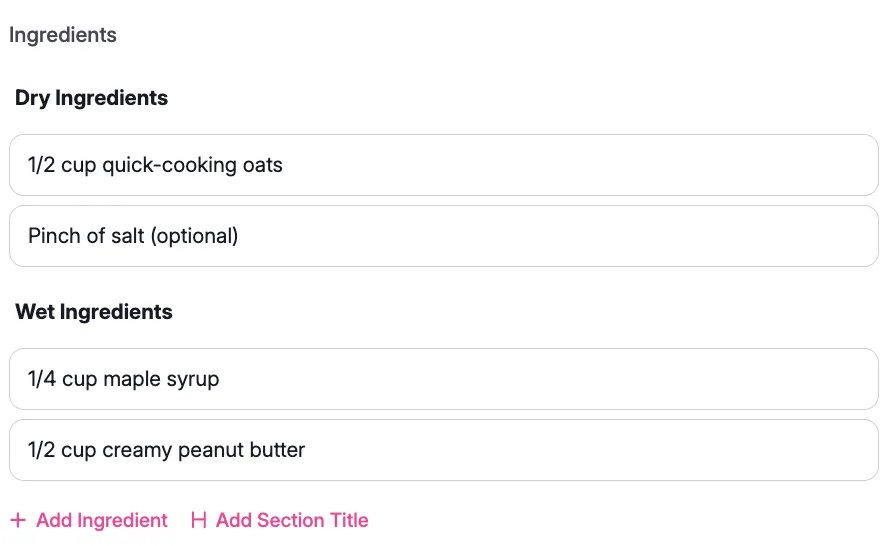
Each line becomes its own ingredient field, in the order you pasted them.
Bulk Editing Your Ingredients
Already have ingredients entered and want to rework the whole list at once?
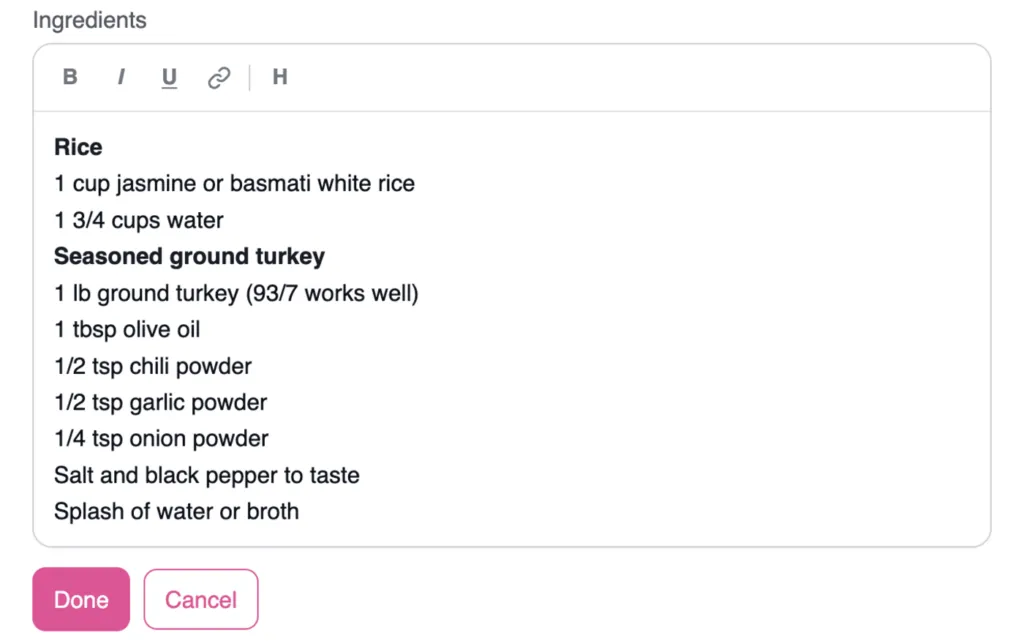
Click Bulk Edit to open everything as plain text in one box. Make your changes, then save. It splits into individual ingredient fields the same way a fresh paste does.
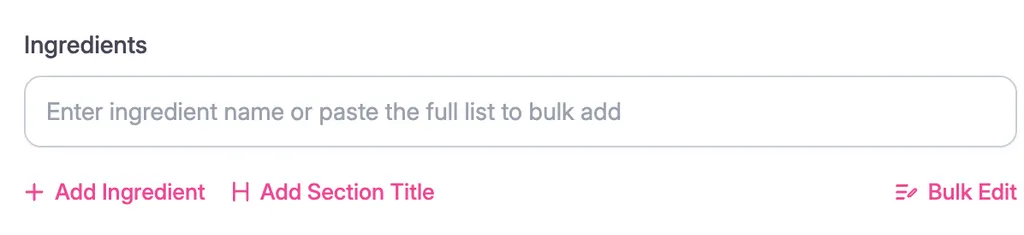
This is useful for reordering, rewording, or cleaning up a long list without dragging and dropping each line one at a time.
If you’re someone who copies your recipes from your recipe builder into your recipe nutrition calculator, doc, or notes to share with a collaborator, this is also an easy way to do it.
Creating Recipe Sections
If your recipe has parts, like a rice bowl with a base, a topping, and a sauce, you can group ingredients under section titles.
From a paste:
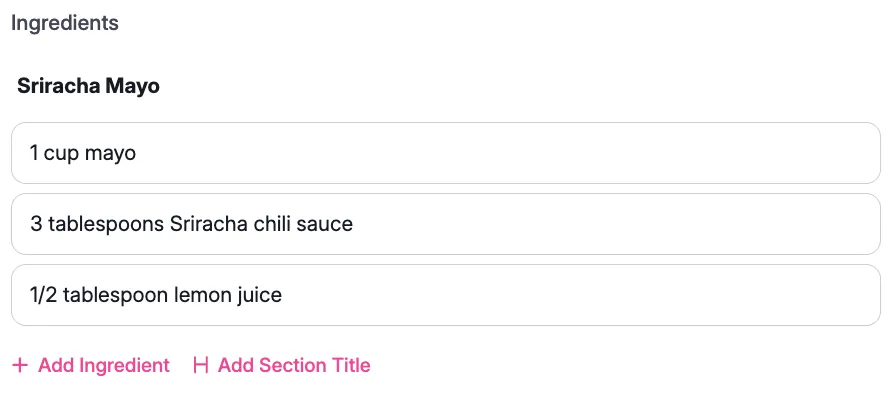
If your original list has a heading sitting above a group of ingredients (for example, “Sriracha Mayo” on its own line above the mayo, lemon juice, and sriracha), the Recipe Builder reads that line as a section title when you paste. Everything below it, up until the next heading, becomes that section’s ingredients.
By hand:
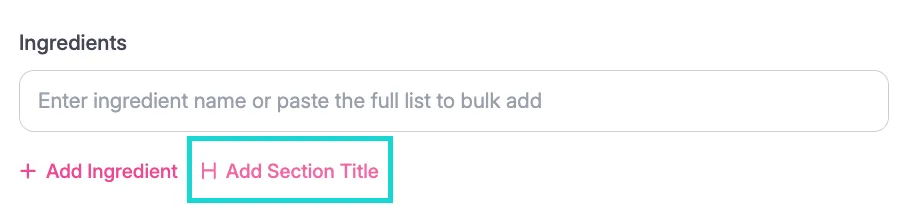
To add a section title without pasting, click + Add Section Title, located under your ingredient list next to + Add Ingredient.
Pasting Your Instructions
Instructions work the same way as ingredients.
- Copy your steps.
- Click into the first instruction field.
- Paste.
Each line becomes its own numbered step. The numbering updates automatically if you add, remove, or reorder steps later.
To start a new step by hand, press Enter (or Return) at the end of the current one.
Editing Individual Steps
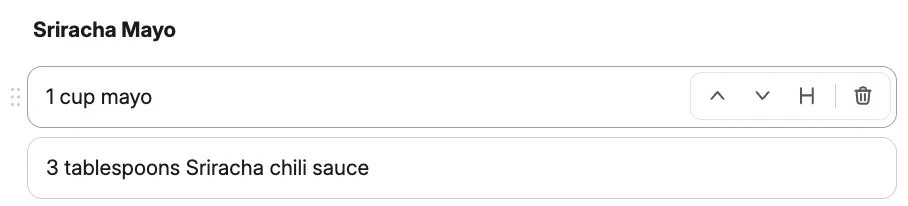
Hover over any instruction step to see your options:
- Move the step up or down
- Add an image to the step
- Turn the step into a section title
- Delete the step
- Highlight text within the step to bold, italicize, underline, or add a link
Reordering Ingredients and Instructions
If something lands in the wrong spot, an ingredient under the wrong section, or a step out of order, you don’t need to retype it.
- Drag and drop: Click and hold the six dots on the left side of any ingredient or step, then drag it to the correct position.
- Arrows: Use the arrows on the right side of a field to move it up or down one slot at a time.
- Undo: If a paste comes in wrong, Ctrl+Z (Cmd+Z on a Mac) undoes it, the same as anywhere else on your site.
What Happens to Recipes You Already Published
Opening a recipe you built before this update won’t change how it looks on your site or in search results.
Whether the ingredients appear as separate fields or as one combined block when you open the editor depends on how the list was originally entered. Either format still displays correctly on the front end, and you don’t need to change anything.
If you’d like an older recipe’s ingredients split into individual fields, copy the list and paste it back in. The builder sorts it the same way it does for new recipes.
Note: If something looks off in an older recipe after opening it, reach out to our support team and we’ll help you get it sorted.
