The WP Tasty Save Recipe/Newsletter feature lets your readers email a recipe to themselves directly from the recipe card. They enter their email address, and the recipe link arrives in their inbox.
If you connect Kit and a reader opts in, they’re added to your newsletter list in the same step.
How It Works for Readers
- A reader finds your recipe and sees a prompt on the recipe card, such as “Email me this recipe.”
- They enter their email and send. The recipe link arrives in their inbox with the recipe photo and a button back to your post.
- If they check the newsletter box, they’re added to your Kit list automatically.
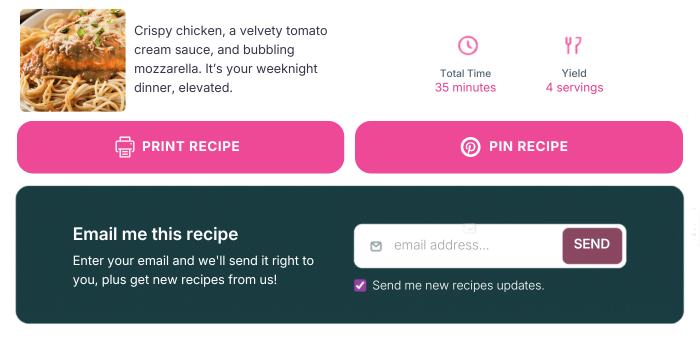
Readers do not need an account, they only enter an email address.
Requirements
- A paid Tasty Recipes plan (Basic or higher). Save Recipe is not available on Tasty Recipes Lite on its own.
- WP Mail SMTP (free) is strongly recommended so emails reach inboxes instead of spam. Set this up before turning the feature on.
- A Kit account is optional. Without it, readers still receive the recipe link by email. With it, newsletter opt-ins flow into your list automatically.
Turning On Save Recipe
- Log into your WordPress dashboard.
- Navigate to WP Tasty → Tasty Recipes → Settings.

- Scroll to the Save Recipe/Newsletter section.
- Toggle the feature on.

- Save your settings.
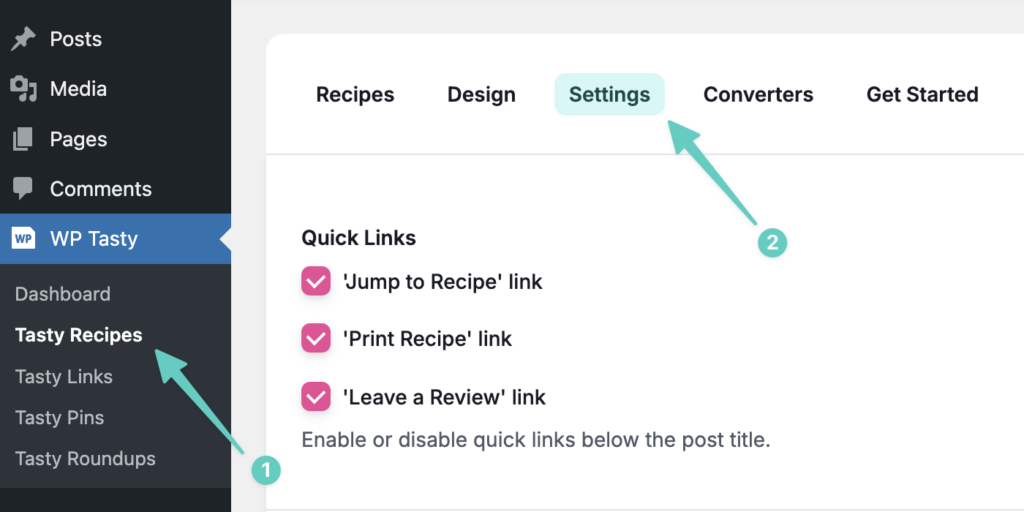

Once you save, the email form appears on every post that contains a recipe card. You turn it on once, and it applies to every recipe, including older posts.
Configuring the Form
Set these options in the Save Recipe/Newsletter section before you preview the form on your posts:
- Call-to-action text: The prompt readers see, for example “Email me this recipe.”
- Subheading: A supporting line below the prompt.
- Button text: The label on the send button.
- Form placement: Choose where the form appears: below the hero image, above the recipe card, or below the recipe card.
- Newsletter consent: Enable the newsletter checkbox so readers can opt into your list (see the GDPR note below).
- Kit API key: Add your Kit V4 API key here if you use Kit. Kit also issues a V3 key in the same settings area, and that one will not work with Save Recipe. See “Connecting Kit” below for where to find the V4 key.
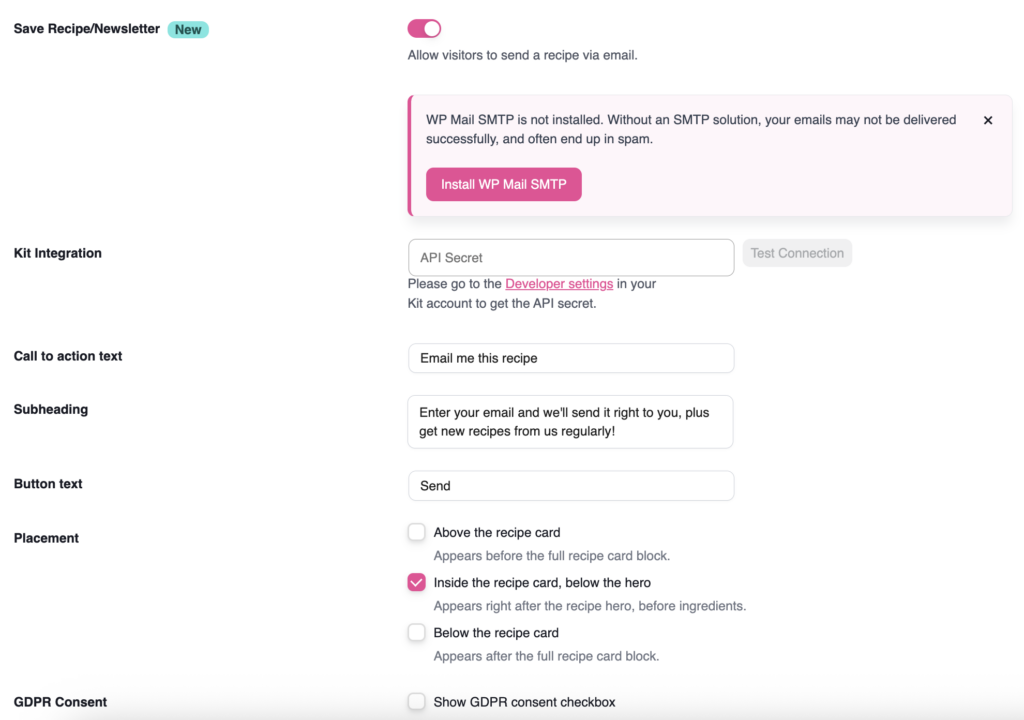
Tip: After saving, view a recipe on the front end of your site to confirm the form appears where you expect.
Connecting Kit
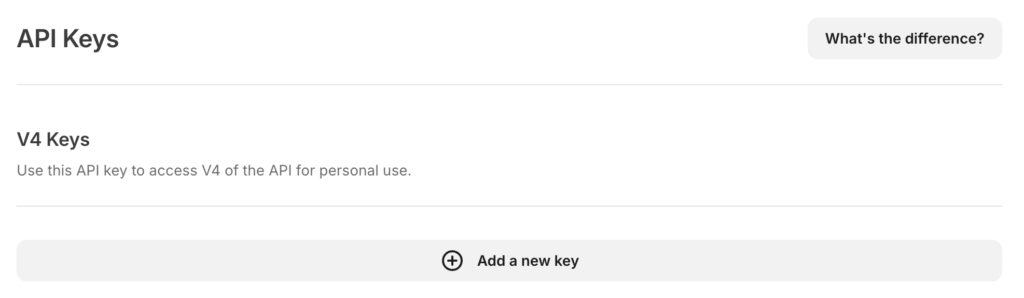
- In Kit, go to Settings → Developer Settings.
- Under V4 Keys, click Add a new key, give it a descriptive name (for example, “WP Tasty”), and click Create API Key.

- Copy the key immediately, because Kit will not show it again after you close the window. If you lose it, you’ll need to reset and create a new one.
- In WordPress, go to WP Tasty → Tasty Recipes → Settings and find the Save Recipe/Newsletter section.
- Paste your Kit API key.

- Save your settings.

Readers who check the newsletter box are added to your Kit list automatically, with no confirmation email required.
Note: If you don’t use Kit, leave the API key field blank. Readers will still receive the recipe link by email.
Email Deliverability (WP Mail SMTP)
By default, WordPress sends email through the server’s built-in mail function, which often lands in spam. Install and configure WP Mail SMTP (free) before turning Save Recipe on. It routes your email through a proper mail service so recipe links arrive reliably.
GDPR and Consent
The newsletter checkbox is unchecked by default. Readers have to actively check it to subscribe, so a reader can email themselves a recipe without joining your list. This keeps newsletter sign-ups opt-in.
Troubleshooting
Emails landing in spam or not arriving:
- Install and configure WP Mail SMTP (free).
- Confirm your sending address is set up correctly in WP Mail SMTP.
Save Recipe form not appearing on posts:
- Confirm the feature is toggled on under WP Tasty → Tasty Recipes → Settings, in the Save Recipe/Newsletter section.
- Confirm the post contains a Tasty Recipes recipe card.
- Confirm you’re on a paid Tasty Recipes plan.
Subscribers not showing up in Kit:
- Check that your Kit API key is entered correctly and saved, and confirm it’s a V4 key, not V3. The two are not interchangeable, and a V3 key won’t connect.
- Confirm the newsletter checkbox option is enabled in your settings.
- Make sure the reader actually checked the newsletter box (it’s unchecked by default).
