
How to Use the WP Tasty Recipe Explorer
The new WP Tasty Recipe Explorer puts all your recipes in one place. Find, edit, and create recipes without digging through WordPress posts.
Accessing Recipe Explorer
- Log into your WordPress dashboard
- Navigate to WP Tasty → Tasty Recipes
- Click the Recipes tab
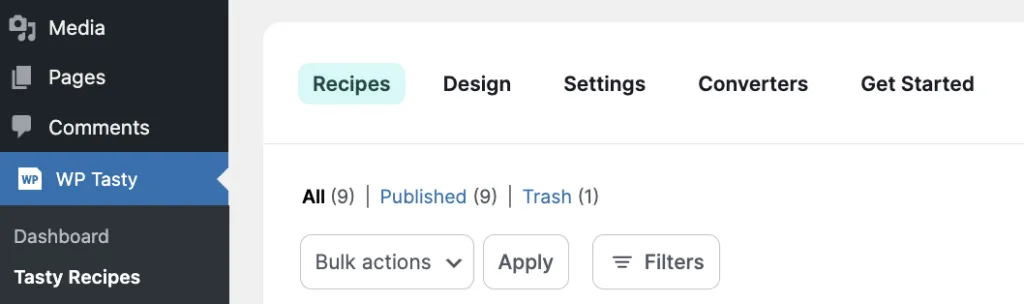
Requirements: You need both Tasty Recipes and Tasty Recipes Lite installed and active. Lite provides core features like the recipe explorer, while Tasty Recipes adds advanced functionality.
This dual-plugin approach allows us to offer essential features like Recipe Explorer free of charge while maintaining cleaner, more stable code and enabling faster development of new features.
Browsing Your Recipe Collection
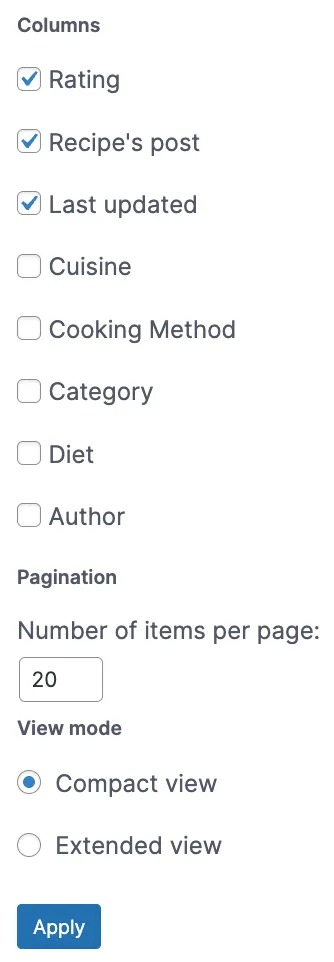
The recipe explorer displays all your recipes in a clean table format with the following column options:

- Recipe Title: The name of your recipe
- Rating: Star rating (if assigned)
- Recipe’s Post: Shows which blog post contains the recipe
- Last Updated: Date the recipe was last modified
- Cuisine: The recipe cuisine
- Cooking Method: The recipe cooking method
- Category: The recipe category
- Diet: The recipe diet
- Columns: Add, edit, or delete columns
Customizing Your View
Use the Columns panel to control what information displays in your recipe table. Toggle columns on or off based on what’s most useful for your workflow. You can also adjust pagination settings and switch between compact and extended view modes for different levels of detail.
Searching and Filtering Recipes
Search Bar
Type any recipe name in the search bar to instantly locate specific recipes. For example, type “Pumpkin Pie” to find all pumpkin pie variations.

Filter Options
Use the filter dropdowns to narrow your results by:
- Rating: Filter by star ratings (1-5 stars)
- Cuisine: Italian, Mexican, Asian, etc.
- Cooking Method: Baking, grilling, slow cooker, etc.
- Category: Appetizers, main dishes, desserts, etc.
- Author: Filter by recipe author
- Diet: Vegan, vegetarian, gluten-free, keto, etc.
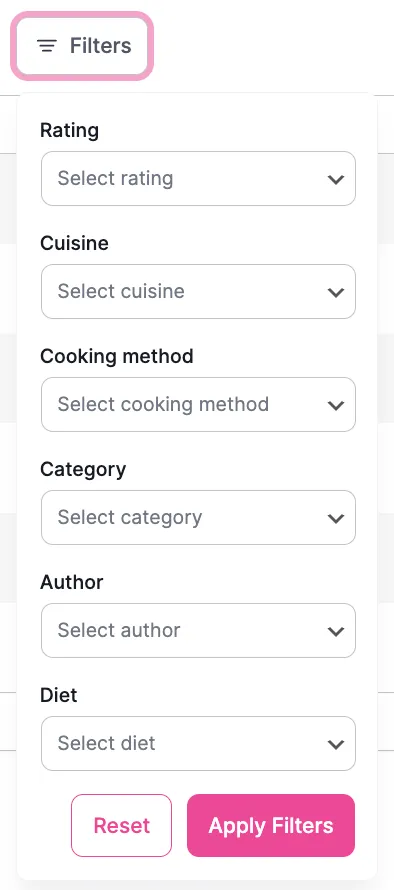
Pro Tip: Use filters to prepare for seasonal traffic. For example, filter all “Christmas” category recipes in November to update them before holiday traffic peaks.
Editing Existing Recipes
Quick Recipe Card Edits
- Find your recipe in Recipe Explorer
- Click Edit under the recipe title
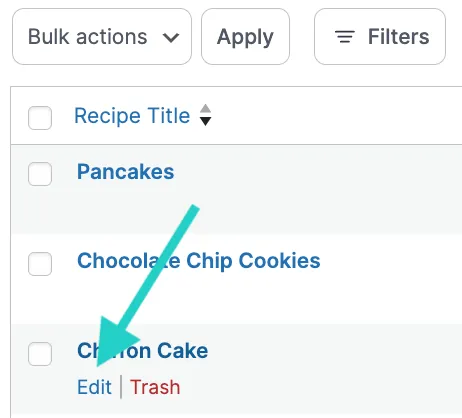
- Make changes to ingredients, instructions, prep time, etc.
- Click Update Recipe
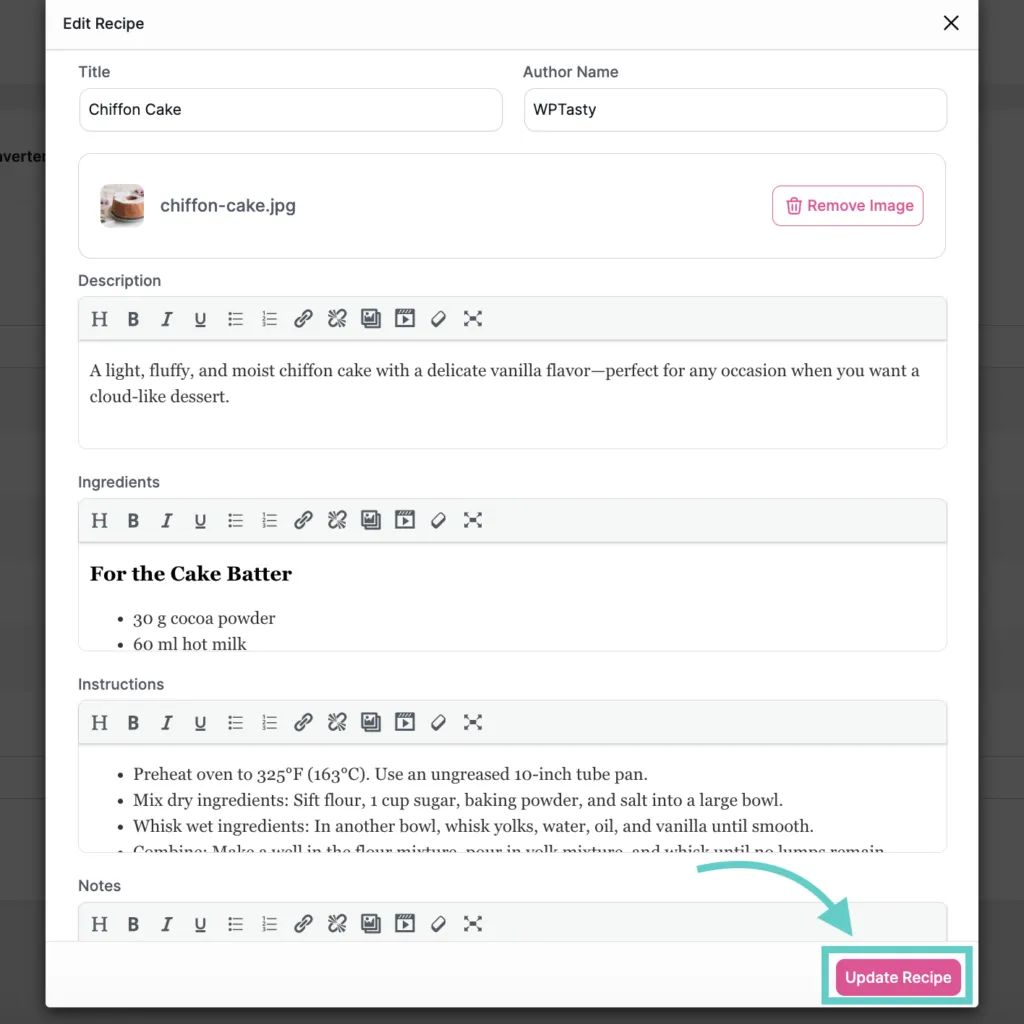
Changes made in Recipe Explorer automatically update in all posts containing that recipe.
Tip: After making edits, review your recipe on the front end of your website to ensure everything displays as intended.
Editing the Full Blog Post
- In Recipe Explorer, locate your recipe
- Click the post title in the Recipe’s Post column
- This opens the full WordPress post editor
- Edit the story, photos, and content around the recipe
Creating New Recipes
The WP Tasty Recipe Explorer offers two workflows for creating recipes:
Method 1: Create Recipe First, Publish Later
This method is ideal for batch recipe creation or capturing ideas before you’re ready to write a full post.
- Click the Create Recipe button in Recipe Explorer
- Fill out the recipe details:
- Recipe title
- Description
- Ingredients
- Instructions
- Category, cuisine, and cooking method (important for organization)
- When prompted to embed the recipe, click Skip this step
- The recipe is saved in Recipe Explorer for later use
Method 2: Add Recipe to Existing Post
- Create your recipe using Method 1 above, OR
- In your WordPress post editor, add a new Tasty Recipes block or type
/tasty recipe - Select Embed existing recipe
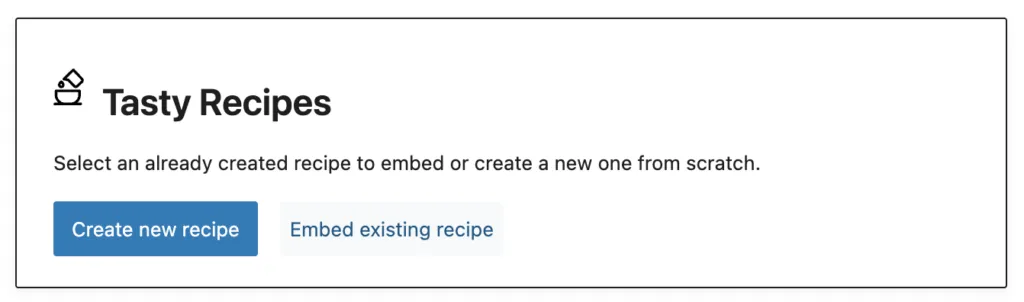
- Choose from your saved recipes list
- Click to insert the recipe card into your post
Note: The recipe card will be added at the bottom of your post content. You can move it to a different location within the post editor if needed.
Managing Recipe Organization
Using the Last Updated Column
The “Last Updated” column serves as a personal to-do list:
- Identify recipes that haven’t been updated recently
- Prioritize seasonal recipes for refresh (e.g., update cranberry recipes before Thanksgiving)
- Track which recipes need attention
Bulk Actions (Pro Feature)
Tasty Recipes Pro users can:
- Select multiple recipes using checkboxes
- Delete recipes in bulk to declutter their library
- Perform other bulk management tasks
Troubleshooting
Recipe not appearing in Explorer:
- Verify both Tasty Recipes and Tasty Recipes Lite are active
- Check that the recipe was created using Tasty Recipes, and not another plugin
- We have articles for getting started with Tasty Recipes and getting started with Tasty Recipes Lite
Changes not updating in posts:
- Recipe card edits in Explorer automatically sync to posts
- If changes don’t appear, try refreshing the post or clearing cache
Can’t find specific recipe:
- Use the search bar with partial recipe names
- Try filtering by category or cuisine instead of searching
- Check if the recipe was created under a different author
