
Your readers love your recipes, but they don't always love lugging their pricey phones and tablets into the splash zone of a messy kitchen.
Adding a print recipe button to your WordPress food blog is a simple way to make their lives easier. One click, and your reader has a clean card they can prop on the counter, stick to the fridge, or hand to a neighbor. No screen to wake up. No flour on the iPad.
Most plugins print website clutter like ads and sidebars, but Tasty Recipes strips that away. It turns your hard work into a polished printout that looks like it belongs in a cookbook, without you ever having to code.
A recipe-specific print button wins readers over
Top food bloggers like Sally’s Baking Addiction and Pinch of Yum use the print recipe button baked into Tasty Recipes for a reason.
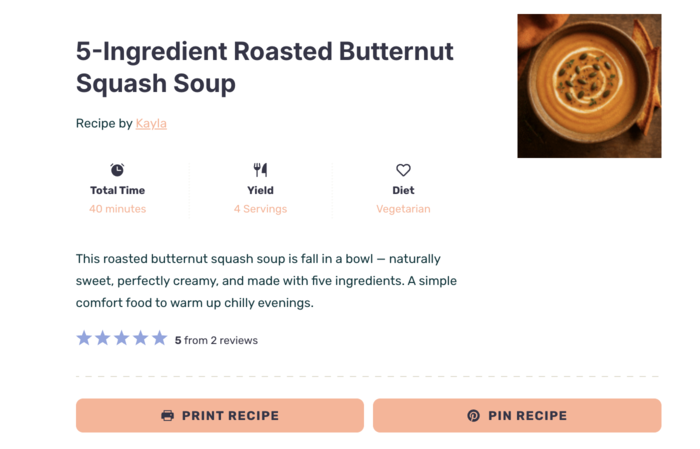
Readers browse on their phones for inspiration, but they print when they’re ready to cook.
A printed recipe card is easier to follow in a messy kitchen and harder to lose than a browser tab. When you make your recipes easy to print, they become keepsakes. They end up organized in a family binder or handed over a fence to a neighbor.
Plus, every printout keeps your blog’s name in your reader’s kitchen.
No algorithm can interfere with that. They’ll see your brand every time they make that dish, and they’ll know where to go when they’re ready to cook something new.
Clean recipe printouts make you look like a pro
Generic print plugins aren't built for recipes. They often try to print everything: your header, sidebar, footer, and the awkward white gaps where your ads used to be.
Readers don't want a five-page printout with broken formatting. They want a clean, organized recipe card to use in their busy kitchen.
Tasty Recipes cleans off the digital clutter. It automatically removes the navigation bars and ads, sending only the ingredients, instructions, and your branding to the printer.
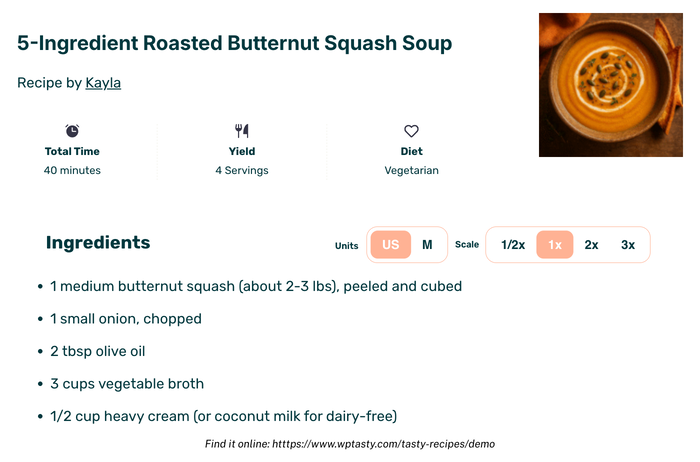
You give your readers exactly what they need to make dinner and nothing else.
Adding a print recipe button to WordPress
You don't need a separate tool just to make your recipes printable. Adding more plugins usually just leads to slower load times and more things that can break during a WordPress update.
Because the print button is part of the Tasty Recipes card, it's already styled to match your blog’s design. It works fresh out of the box, so you can spend less time troubleshooting your site and more time in the kitchen.
Essential recipe printing options with Tasty Recipes Lite
Tasty Recipes Lite is our free WordPress recipe plugin.
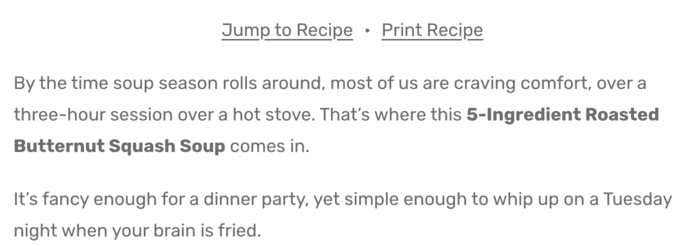
It makes it easy to add a “Print Recipe” text link at the very top of your post — right next to the “Jump to Recipe” link. Plus, you get a print recipe button inside the card itself.
Both match your site's existing styles so they look like a natural part of your brand.
Print recipe button styling and scaling options with Tasty Recipes (Basic and up)
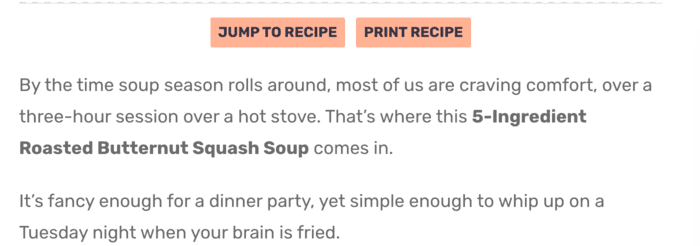
The paid version of Tasty Recipes gives you the option to turn those text links at the top of your post into styled buttons.
Whether you’re using the Bold template or Fresh, these “Jump to Recipe” and “Print Recipe” buttons automatically match your theme’s colors and stay front-and-center for your readers.
It also accounts for recipe scaling in your printed recipes. If a reader doubles your chili recipe and hits “Print,” those adjusted measurements show up on the paper. Without it, your readers are stuck scribbling fractions in the margins with a pencil while they’re trying to cook.
Where to turn on the print recipe button in WordPress
When you get Tasty Recipes, all of your printing options live in one cozy place.
1. Turn on the top-of-post quick links
Log into your WordPress dashboard and go to WP Tasty → Tasty Recipes → Settings → Quick Links.

Tick the “Print Recipe” link, and this adds a “Print Recipe” link at the very top of your post, above the recipe card. This is a super convenient spot for readers who open your post ready to print.
2. Turn on the print recipe button inside the recipe card
This puts a styled print button inside your recipe card, where your reader is already reviewing your ingredients and instructions. It's perfect timing since they've read the recipe and want to make it. Now they hit Print.

- Go to WP Tasty → Tasty Recipes → Settings
- Scroll to the Recipe Card Buttons section
- Click Print from the dropdown menu
🍭 Tasty Tip: Turn on both. Print recipe quick links catch the reader who decides before scrolling. Recipe card print buttons catch the reader who decides after. This way, you'll catch both types of readers.
3. Styled quick link buttons (Paid versions only)

Tasty Recipes gives you the option to turn your Print Recipe links at the top of your post into buttons that match your blog.
- Go to WP Tasty → Tasty Recipes → Settings
- Scroll to the Quick Links Style section
- Click Buttons from the dropdown menu
Recipe print preview gives readers control over what prints
When someone clicks your print recipe button, they see a clean preview panel instead of a cluttered webpage. This gives your readers control over exactly what they’re using their ink and paper for. They can toggle specific elements on or off, like:
- Images
- Description
- Notes
- Text size (Small, Medium, or Large)
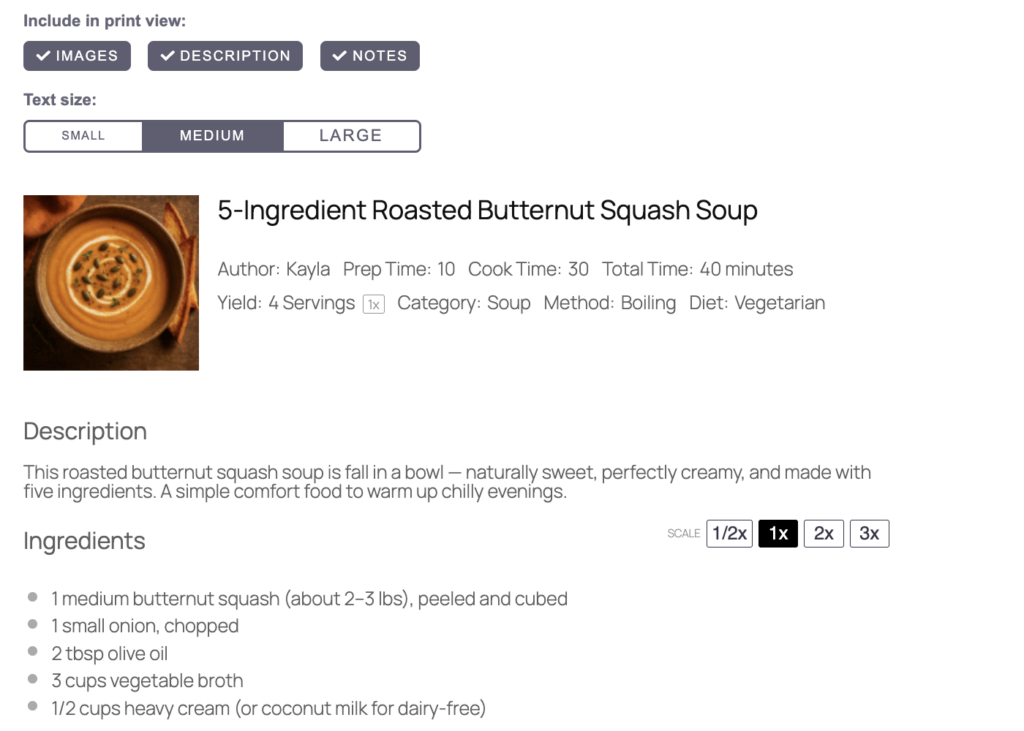
That text size is a small detail that gets big-time love. 💕
Many people print recipes for use throughout the kitchen, or share them with family members who prefer larger text. Being able to bump up to Large before printing shows readers that you understand how they use recipes.
Why jump to recipe and print recipe buttons belong together
If you're setting up a WordPress print button, take ten more seconds and check that your jump to recipe button is on too. They work together.
Jump to recipe gets readers to the card fast. Print gives them a copy to keep. Both live in the same Tasty Recipes settings panel and turn on in seconds.
For a full walkthrough, see our guide on how to add a jump to recipe button to WordPress.
One button and a few minutes make your food blog recipes printable today
If you're already using Tasty Recipes, go to WP Tasty → Tasty Recipes → Settings and flip it on. It takes 30 seconds.
If you aren't using Tasty Recipes yet, we have an option that fits the phase of blogging you're in.
- Tasty Recipes Lite is free and gives you the “Print Recipe” text link and the “Jump to Recipe” text link. Plus, a clean recipe card with a print recipe button in it.
- Tasty Recipes (Basic plans and up) adds clear, styled buttons that stand out, automatic recipe scaling, and more design templates.
All paid plans come with a 14-day money-back guarantee, so you can see how it looks on your site risk-free. Make it easy for your readers to take your recipes off the screen and into their kitchens.

Your recipe printing questions, answered
- Do I need a separate print plugin for WordPress?
-
No. Print functionality is already built into Tasty Recipes. Turn it on in settings, and it works any time you add a recipe card to a WordPress post, including the ones you've already published.
- Does Tasty Recipes Lite include a print option?
-
Yes. The free version comes with a “Print Recipe” text link for the top of your post and a clean print recipe button inside the recipe card itself.
- What do readers see when they click the print button?
-
A clean print preview with a customization panel. Readers toggle images and the description on or off, hide notes if they want, and pick a text size (Small, Medium, or Large) before printing.
- If a reader scales my recipe before printing, does the scaled amount print?
-
Yes, with paid Tasty Recipes plans. If a reader scales to 2x before clicking Print, the printout shows the 2x amounts.
- Will the print recipe buttons and links work for readers on mobile too?
-
It does. The print functionality is works across all devices. Mobile readers can use the button to send the recipe to a wireless printer just as easily as desktop users.

