
You Write Recipes Elsewhere? The New Recipe Builder Keeps Up
Your recipe is already written. It’s probably in a Google Doc or in the Notes app under a title like BANANA BREAD v4 (THE GOOD ONE). 🤤
The cooking is done, and the photos are edited. All that’s left is moving it into WordPress. It’s a task that should take five minutes tops. But every food blogger we surveyed said the copy/pasting was eating up a lot more of their time than that.
Our old Recipe Builder was created as a place to compose recipes. Turns out, nobody actually writes their recipes in there, though.
So we rebuilt it as a place for your recipes to land.
- Paste your ingredients — all of them, at once
- Recipe sections that build themselves
- Recipe instructions work the exact same way
- Change or copy your whole list at once with Bulk Edit
- Rearrange ingredients and instructions without retyping
- Small recipe building tips along the way
- A few things moved in the Recipe Builder
- Your published recipes didn’t change
- Go make something tasty in your new Recipe Builder
- Recipe Builder FAQs
Paste your ingredients — all of them, at once
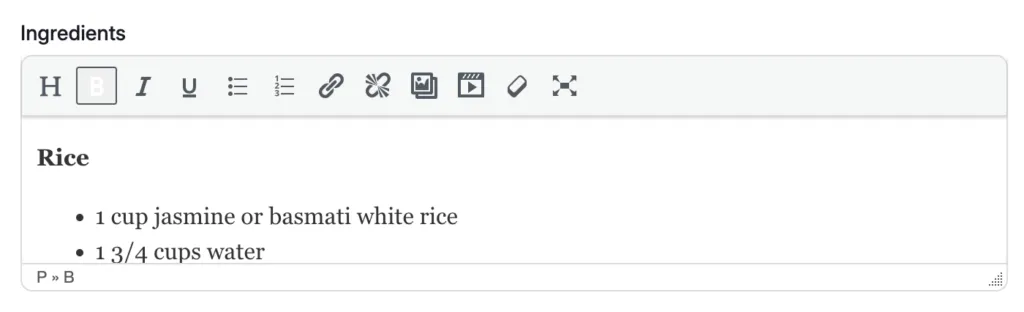
Before: Ingredients lived in one big text box. You’d paste a list from your doc, and you’d get a run-on line, or breaks in the wrong spots. Or spacing that looked fine while you typed and fell apart on the front end. So you pasted one line, hit enter, nudged it into place, pasted the next. Twenty-two ingredients meant twenty-two little corrections.
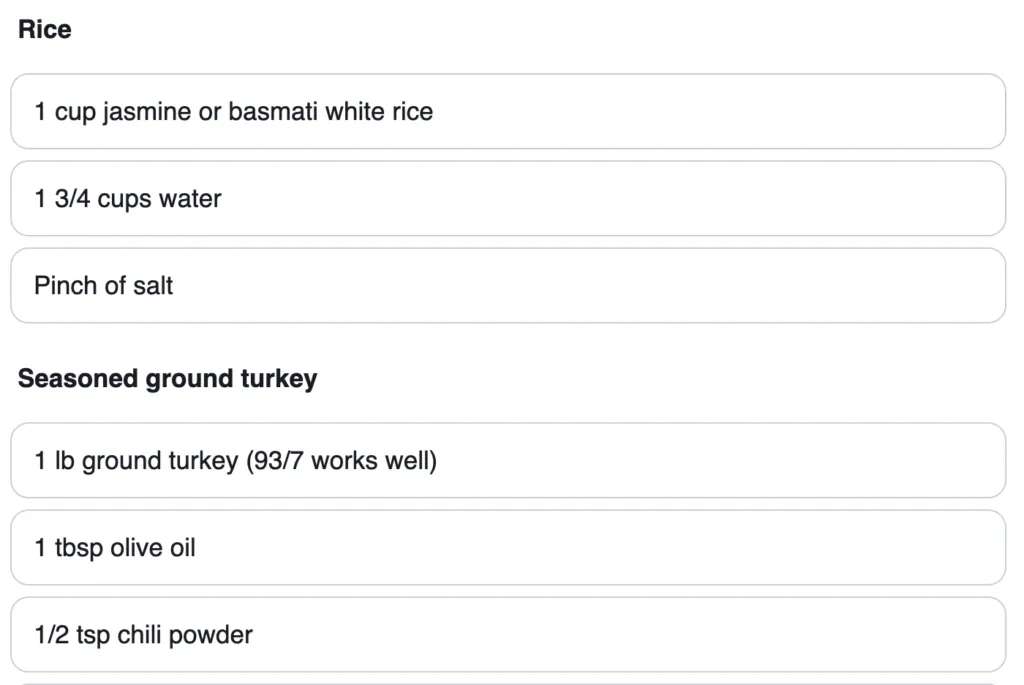
Now: Copy the whole list. Paste it once. Every line lands as its own ingredient.
When we asked what would make building a recipe noticeably faster, one blogger answered: “If I wasn’t fighting with formatting the ingredients.” That fight is over.
Recipe sections that build themselves
Say you’re publishing a rice bowl. 🍚 There’s the rice, and there’s the seasoned ground turkey. Plus the sriracha mayo for drizzling on top. In your doc, each part already has a heading sitting over it.
Before: You’d type “Rice” on its own line, click the heading button, then go check the front end to see whether it took. Then do the same for “Seasoned Ground Turkey.” Then again next week, for the next recipe with parts.
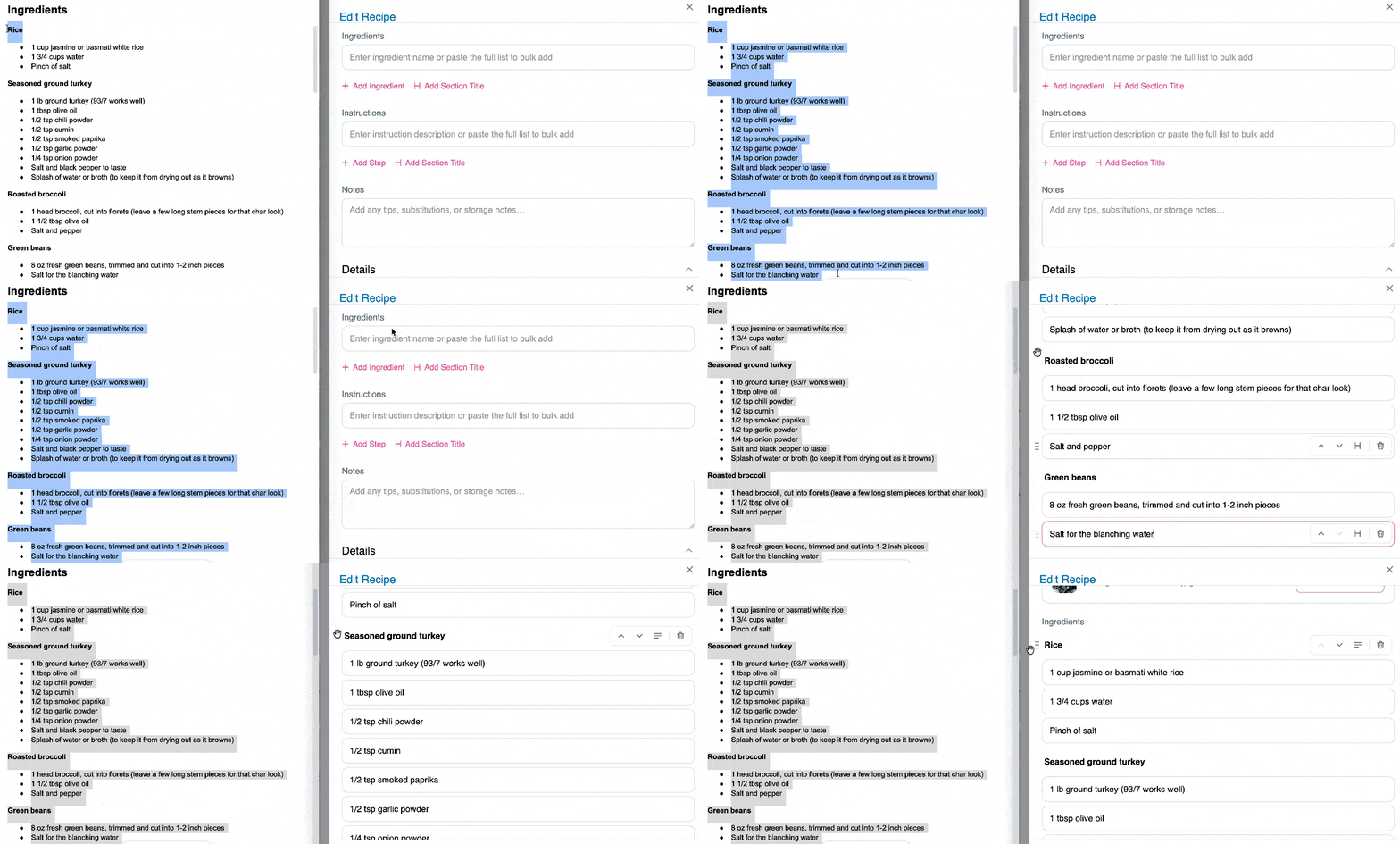
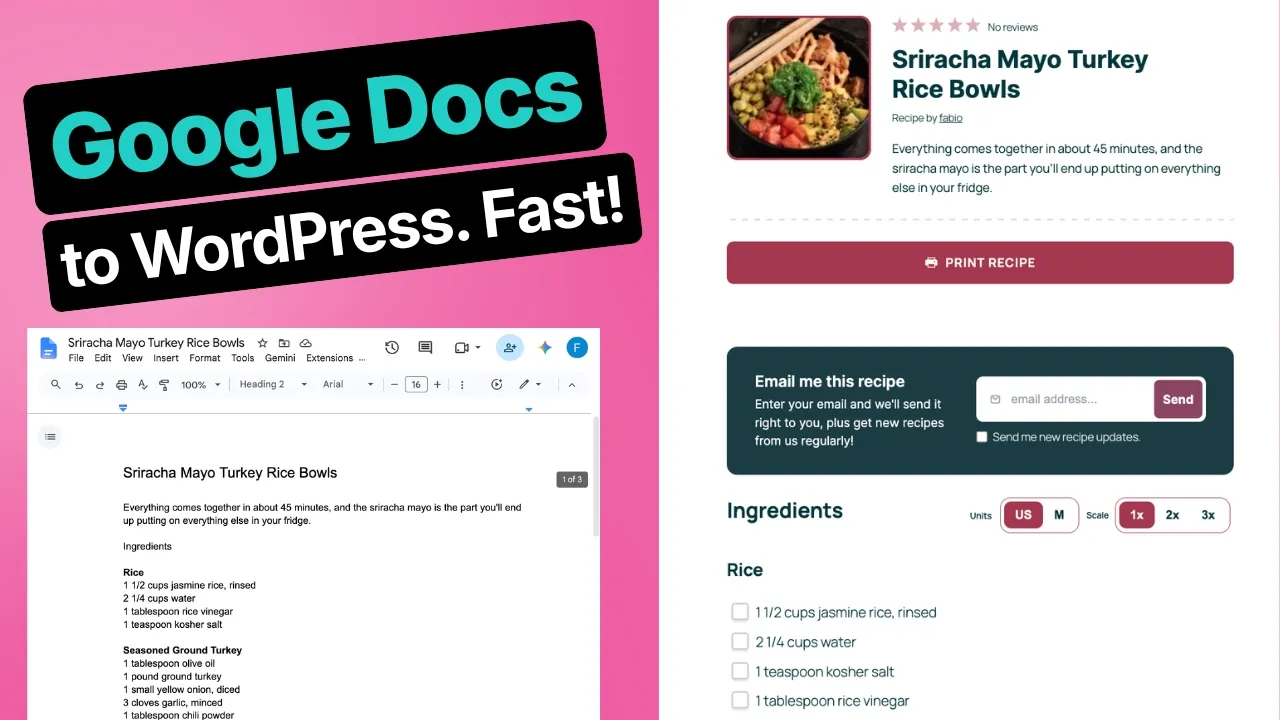
Now: You paste it in (straight from your doc) and the Recipe Builder keeps your headings.
“Rice” becomes a section title with rice, water, and salt underneath it. “Seasoned Ground Turkey” becomes the next section title, holding the turkey, olive oil, chili powder, cumin, and the rest tucked under it. “Sriracha Mayo” becomes the third, and you didn’t type any of those titles twice.
You built that structure once in your doc, and you don’t build it again.
And if you’d rather add sections by hand, there’s a button for it. + Add Section Title sits right under your ingredient list, next to + Add Ingredient.
Recipe instructions work the exact same way
Before: One text box again. You formatted your own steps, numbered them yourself, and redid the numbers any time you moved something.
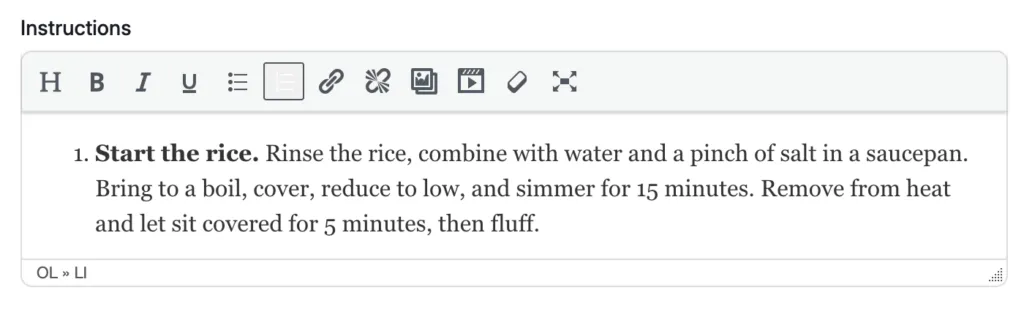
Now: Paste your steps in and each line becomes its own step. The numbering takes care of itself. Hit enter or return at the end of a step and the next one opens up.
Hover over any step and your options are there:
- Move it
- Add an image to it
- Turn it into a section title
Highlight text inside a step to bold it, italicize it, underline it, or drop in a link. 🔗
Change or copy your whole list at once with Bulk Edit
Say you rewrote the recipe after testing it again, and now your ingredients or instructions need edits. Clicking into each separate rows to make a bunch of small changes is slower than it should be.
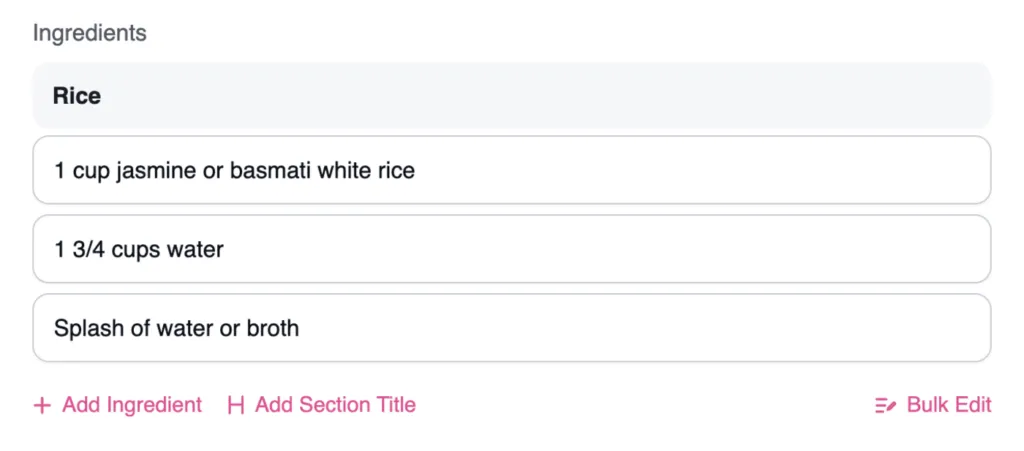
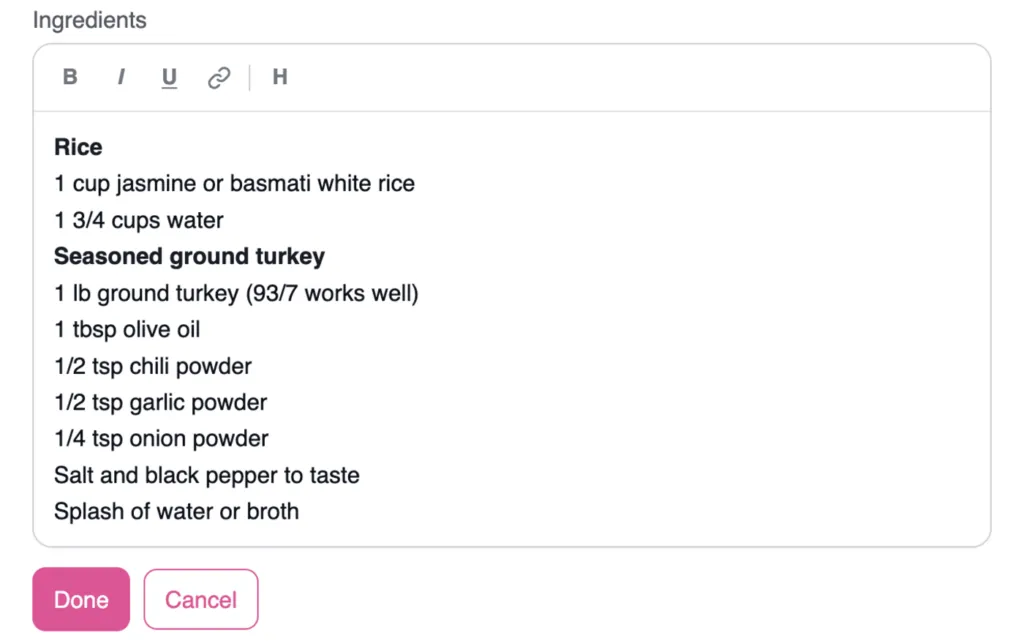
Bulk Edit sits below your ingredient list, and below your instructions. Click it and the whole list opens as one box you can type in, section titles and all. Change what you need, hit Done, and every line drops back into its own row with your sections still intact.
It works in the other direction too. Sometimes the recipe is finished and you need the list somewhere else, like pasting your ingredients into Nutrifox for a nutrition label or dropping your steps into a doc for a collaborator.
- Open Bulk
- Edit, select the whole list
- Copy it in one go. 📋
It’s the same list either way. Rows while you’re building it. One box when you need to edit or copy the whole thing at once.
Rearrange ingredients and instructions without retyping
If you’re doing a final check and realize the mayo should have been listed under the sauce heading instead of the rice, there’s now a simpler fix.
Before: The formatting fight begins. 🥊 Highlight the line, cut it, click into the right spot, paste, and then fix whatever the spacing did on the way over.
Now: Grab the six dots on the left of any ingredient or step and drag it where it belongs. Or use the arrows on the right to move it one slot at a time.
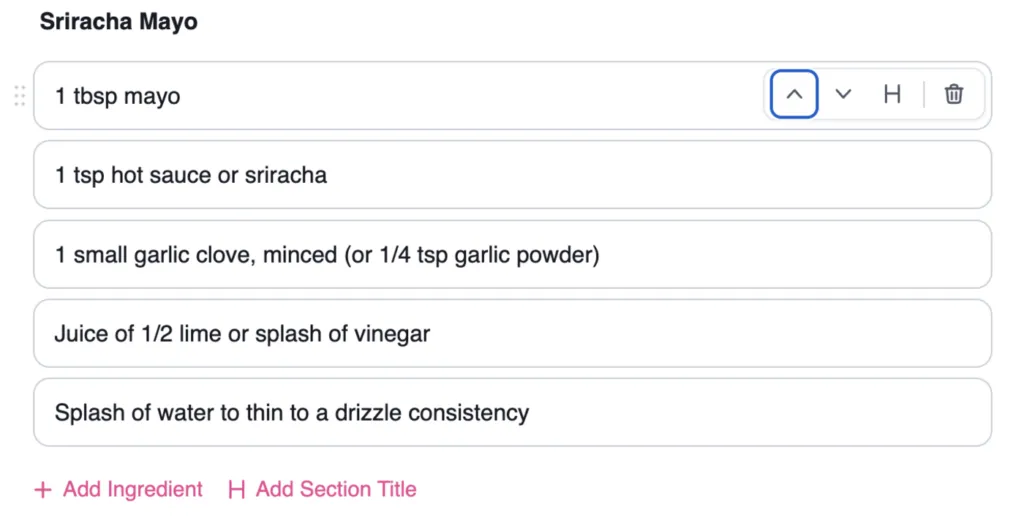
And if a paste comes in wrong, Ctrl + Z (or Cmd + Z on a Mac) undoes it, same as anywhere else.
Small recipe building tips along the way
Before: A stack of empty boxes and good luck.
Now: Every field has light grey text inside it telling you what belongs there.
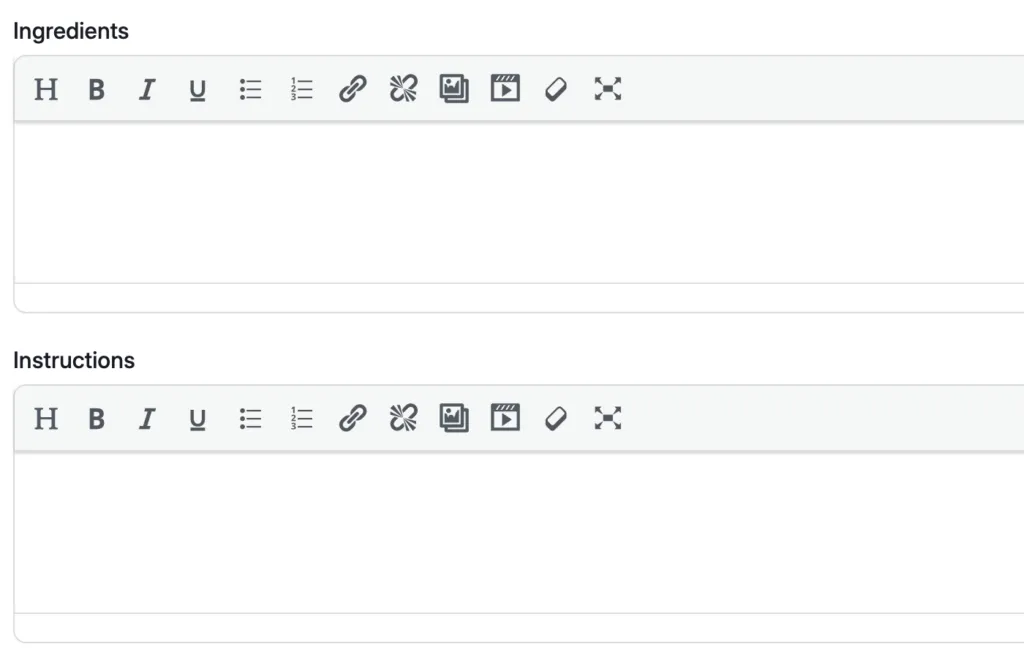
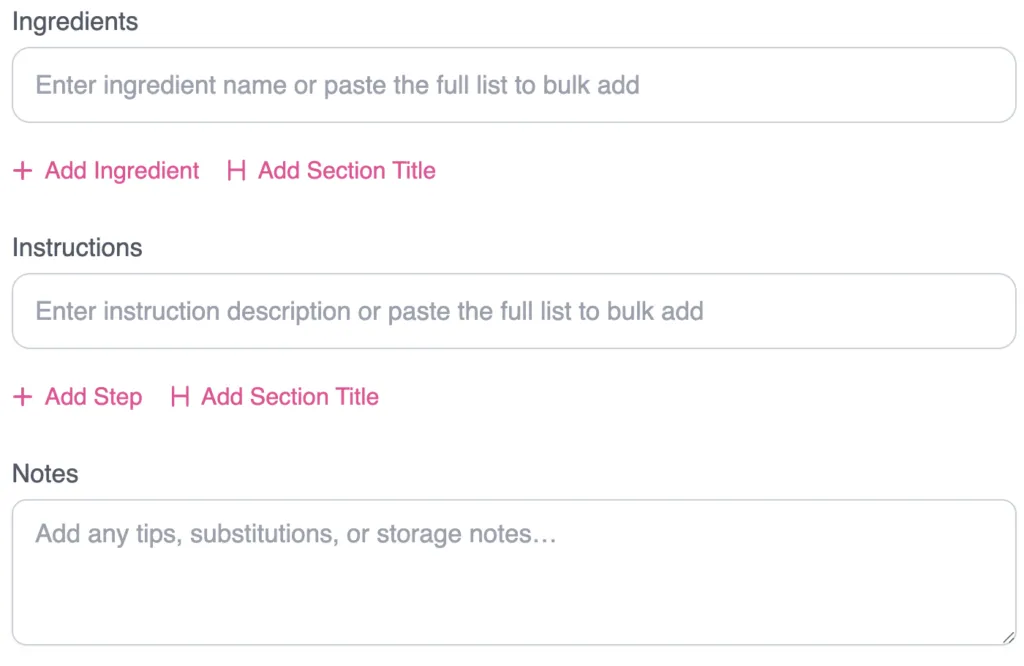
The old builder expected you to work that out on your own. This one tells you.
A few things moved in the Recipe Builder
Nothing disappeared, but some things are in new spots:
- Description now sits directly under the title, so you write the recipe intro before you go hunting for a photo.
- Recipe Image comes after the description.
- Author moved down below the Video URL field.
- Nutrition lives in a dropdown near the bottom.
On that last one: nutrition didn’t go anywhere. 🙅♀️ Open the dropdown and you’ll find your Nutrifox ID field and the manual nutrition fields right where you’d expect. Nutrifox works on any plan. Entering nutrition by hand is on Basic and up.
Your published recipes didn’t change
Every recipe you’ve already published looks exactly the same on your site. Your readers won’t see a single change, and your recipe schema is still identical. Google sees exactly what it’s always seen.
Your existing recipes aren’t touched until you open one and save it. Updating the plugin doesn’t go through your archive and rewrite anything. If you have 400 recipes and you never open them, all 400 stay exactly as they are.
When you open an older recipe, it splits into individual ingredient and instruction rows automatically. This happens whether your original list used bullets or was just typed as running text. Your recipe card looks exactly the same either way. This only changes what you see while editing.
If it comes through as one block, leave it. It works exactly like it always has, and your recipe card looks the same either way. If you’d rather split it out, you can do it by hand or paste the list back in and let the builder sort it. Take a closer look at using the new Recipe Builder.
If something looks off in an older recipe, send it to support. We’ll help you get it figured out. 🫶🏼
Go make something tasty in your new Recipe Builder
Getting the new Recipe Builder is as easy as:
- Updating Tasty Recipes from your WordPress dashboard
- Opening your next recipe
- Pasting in your ingredient list and instructions
New to Tasty Recipes? Grab it below! 👇
Recipe Builder FAQs
Do I have to do anything to get the new Recipe Builder?
Update Tasty Recipes to the latest version. The new Recipe Builder opens the next time you create or edit a recipe. There’s no setting to switch on.
Is the new Recipe Builder on my plan?
Yes. It’s on every version of Tasty Recipes — every paid plan and Tasty Recipes Lite.
Will updating change my existing recipes?
Nope. Your recipes stay as they are until you open one and save it. Updating the plugin doesn’t touch your archive.
What if I don’t write my recipes in a doc first?
You’ll still notice a difference. Multi-part recipes are quicker to set up, since + Add Section Title builds your groups as you go. And when an ingredient ends up in the wrong spot, you drag it by the six dots instead of cutting and pasting it.
Where’d the nutrition fields go?
Don’t worry! They didn’t disappear. They’re in a dropdown near the bottom of the builder. Open it and everything’s there, including your Nutrifox ID field.
Where’d the author field go?
It moved below the Video URL field. It fills in the same way and shows up in the same place on your recipe card.
Will this update change my recipe SEO?
Nope! Your recipe schema stays exactly the same, so Google sees what it’s always seen. These changes are all on the writing side.